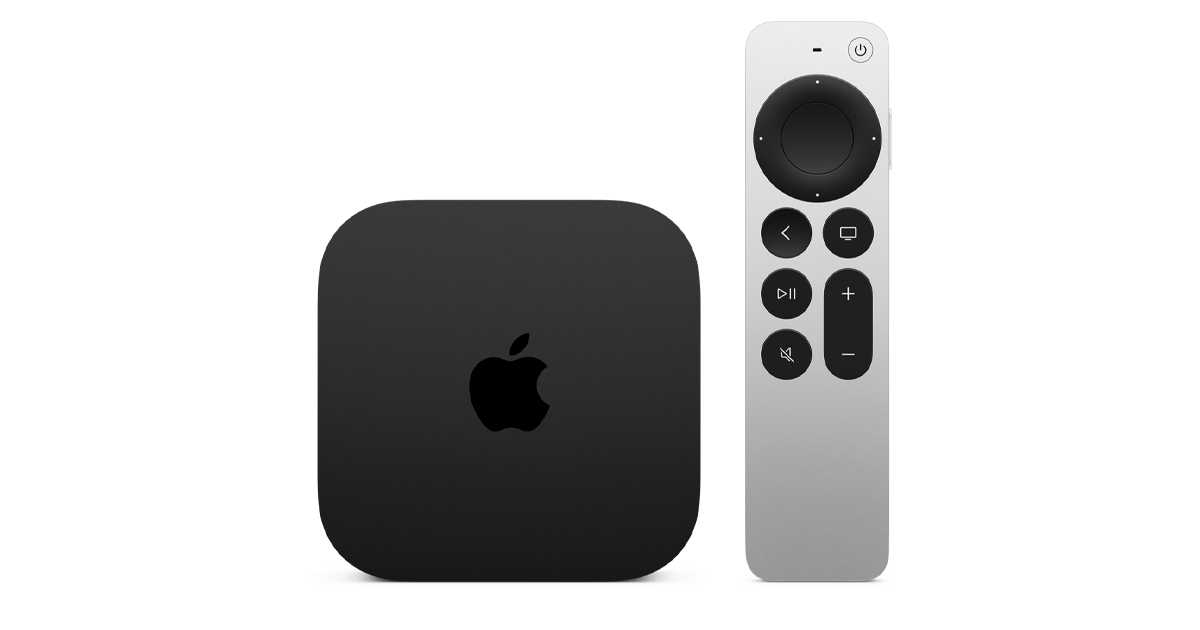
Apple TV 4K’s default settings leave the most important option turned off: Match Frame Rate. With it off, every film you watch plays at the wrong frame rate and looks slightly wrong without you knowing why. Five other settings also need changing. This guide covers the six most impactful Apple TV 4K settings, where to find each one, and what it actually does. Takes five minutes to apply all of them.
Apple TV 4K quick settings cheat sheet
| Setting | Where to find it | Recommended value | Why |
|---|---|---|---|
| Match Frame Rate | Settings > Video and Audio > Match Content > Match Frame Rate | On | Outputs film content at 24fps instead of 60Hz. Eliminates judder on movies. |
| Format | Settings > Video and Audio > Format | 4K Dolby Vision SDR | Confirms 4K Dolby Vision is active if your TV supports it. |
| High Frame Rate | Settings > Video and Audio > High Frame Rate | SDR Only (or Off unless TV has HDMI 2.1) | Avoids forcing 120Hz on TVs that do not support it well. |
| Reduce Loud Sounds | Settings > Video and Audio > Audio > Reduce Loud Sounds | Off | Compresses dynamic range. Dolby Atmos content benefits from full dynamics. |
| Color Balance | Settings > Video and Audio > Calibrate > Color Balance | Run calibration | Uses iPhone camera to calibrate color for your specific TV. |
| Audio Format | Settings > Video and Audio > Audio Format | Dolby Atmos (if soundbar/receiver supports it) | Enables spatial audio on supported content and devices. |
Video settings to optimise
Three video settings have the most impact on picture quality.
Match Frame Rate
This is the single most important setting on the Apple TV 4K. By default it is off, meaning everything plays at 60Hz regardless of its original frame rate. Films shot at 24fps are displayed at 60Hz, which introduces a subtle but persistent judder on camera movement. It is the difference between a film looking like film and looking like something is slightly wrong.
Enabling Match Frame Rate tells Apple TV to switch the TV’s refresh rate to match the content: 24Hz for cinema, 30Hz for US TV, 60Hz for sports. I enabled this on my setup and the improvement on any 24fps film was immediately obvious. Enable it and never think about it again.
Format: confirm 4K Dolby Vision
Go to Settings > Video and Audio > Format. The format display confirms what resolution and HDR standard is active. For most users with a compatible TV, this should show 4K Dolby Vision. If it shows 4K SDR, your TV may not support Dolby Vision or the HDMI port may not be configured for it. Confirm the TV’s HDMI port has Enhanced Input or similar enabled if Dolby Vision is not appearing.
Color Balance
This feature uses your iPhone’s front camera to measure the color temperature and tint of your specific TV and apply a correction profile. No generic setting matches what this delivers because it calibrates to your actual screen. Point the iPhone at the TV when prompted, hold it steady for about 30 seconds, and the calibration completes. My TV showed a warm correction after calibration that made skin tones noticeably more accurate.
Audio settings to optimise
Three audio settings are worth changing immediately.
Audio Format: Dolby Atmos
If your soundbar, AV receiver, or TV speakers support Dolby Atmos, set Audio Format to Dolby Atmos at Settings > Video and Audio > Audio Format. This enables spatial audio on supported content. If you use the TV’s built-in speakers only, Stereo is the correct setting. Dolby Atmos on TV speakers has no benefit.
Reduce Loud Sounds: Off
Reduce Loud Sounds compresses the dynamic range of all audio output. It was designed for late-night listening but its default On setting reduces the impact of Dolby Atmos content. Turn it off. If you need quieter output at night, lower the volume instead.
Spatial Audio for AirPods
If you use AirPods with your Apple TV, enable Spatial Audio in Settings > Remotes and Devices > Bluetooth > your AirPods. This applies head-tracked spatial audio when watching content with Dolby Atmos or supported formats.
Accessibility and interface settings worth changing
Two smaller settings are worth adjusting for daily use. Sleep after inactivity defaults to 30 minutes. If the TV turns off during long films when you pause, reduce this at Settings > Sleep After to 1 or 2 hours. Data sharing at Settings > General > Privacy > Share Apple TV Analytics defaults to on. Turn it off if you prefer not to share usage data with Apple.
Frequently asked questions
What is Match Frame Rate on Apple TV 4K?
Match Frame Rate tells Apple TV to output video at the frame rate of the content rather than a fixed 60Hz. Films shot at 24fps play at 24fps, preventing the judder that occurs when 24fps content is displayed at 60Hz. Enable it at Settings > Video and Audio > Match Content > Match Frame Rate. It is the single most impactful Apple TV 4K setting.
Should I enable Dolby Atmos on Apple TV 4K?
Yes, if your TV or soundbar supports Dolby Atmos. Set Audio Format to Dolby Atmos at Settings > Video and Audio > Audio Format. This enables spatial audio on supported content. If you only use the TV’s built-in speakers without Atmos support, set it to Stereo instead.
How does Apple TV 4K Color Balance work?
Color Balance uses your iPhone’s front camera to measure the color output of your specific TV and apply a correction profile. Run it at Settings > Video and Audio > Calibrate > Color Balance. Hold your iPhone facing the TV screen when prompted. The process takes about 30 seconds and produces a screen-specific calibration that improves color accuracy significantly.
See how we set up the Apple TV 4K from scratch
New to Apple TV 4K? Start with the full setup guide.
Read the setup guide