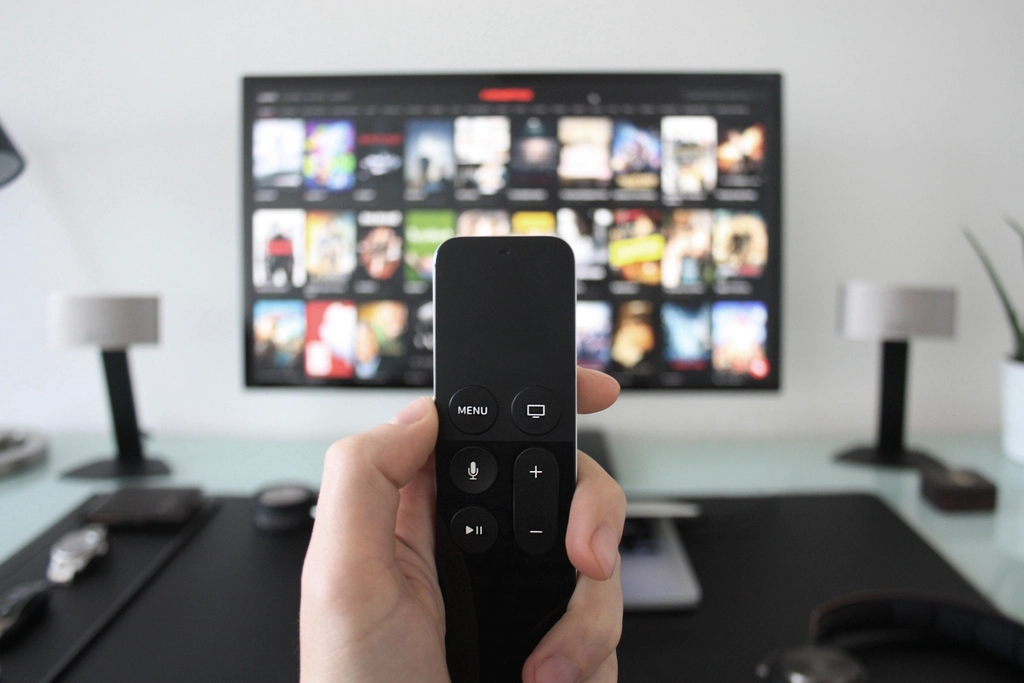
Apple TV 4K setup takes 5 to 10 minutes. If you have an iPhone, the automated setup method transfers your Wi-Fi credentials and Apple ID in under 3 minutes. This guide covers hardware connection, network setup, account sign-in, and the three picture calibration settings you should change before watching anything. Follow the phases in order and you will be watching 4K Dolby Vision content before you finish your coffee.
What you will need
- Apple TV 4K (3rd generation recommended)
- HDMI cable (included; use HDMI 2.1 if your TV has HDMI 2.1 for 4K/120Hz)
- TV with an available HDMI port
- Wi-Fi network credentials
- Apple ID (create one free at apple.com)
- iPhone with Bluetooth enabled (optional but speeds up setup significantly)
Phase 1: hardware connection
Get the physical connection right before powering anything on.
Step 1: connect the HDMI cable to Apple TV 4K
The Apple TV 4K has one HDMI port on the back. For standard 4K streaming at 60Hz, the included HDMI cable works fine. If your TV has HDMI 2.1 ports and you want 4K at 120Hz for gaming, replace the included cable with a certified Ultra High Speed HDMI 2.1 cable. See our best HDMI cables for Apple TV 4K guide for specific picks.
Step 2: connect the other end to your TV
Plug into an available HDMI port and note the port number. You will need to select this as the TV input. If your TV has HDMI 2.1 ports, use one of them for the Apple TV to enable 4K/120Hz.
Step 3: connect the power cable
The 3rd generation Apple TV 4K uses USB-C power. The 2nd generation uses Lightning. Connect the included power cable. The Apple TV does not have a power button. It powers on as soon as you connect power and a display.
Step 4: turn on your TV and select the HDMI input
The Apple TV setup screen should appear automatically. If not, confirm you selected the correct HDMI input on your TV using the source or input button on the remote.
Phase 2: initial setup (iPhone method, fastest)
With an iPhone nearby, the process is largely automatic.
Step 5: bring your iPhone near the Apple TV
A pairing prompt appears on your iPhone automatically when the Apple TV is powered on and the setup screen is showing. You do not need to open any app.
Step 6: hold the iPhone over the Apple TV pattern
Your iPhone shows a camera viewfinder. Point it at the dot pattern on the Apple TV screen to authenticate the pairing. This is similar to scanning a QR code.
Step 7: confirm Wi-Fi transfer
Your iPhone’s saved Wi-Fi network and password transfer automatically to the Apple TV. You do not type anything. This is the single biggest time-saver of the iPhone setup method.
Step 8: sign in with Apple ID
Apple TV authenticates using your Apple ID from the iPhone. Confirm the sign-in on your iPhone when prompted.
Step 9: complete preferences
Choose your TV provider for live TV access, review privacy settings, and let the initial app downloads complete. I typically skip the TV provider step and set it up later.
Phase 2 (manual): setup without iPhone
Without an iPhone, you enter credentials manually using the Siri Remote.
Select your Wi-Fi network from the list and enter the password using the on-screen keyboard. Navigate using the touch surface on the Siri Remote. Sign in with your Apple ID and password the same way. The manual process takes about 5 to 8 minutes longer than the iPhone method but works identically once complete.
Phase 3: picture calibration
Three settings make a significant difference before you start watching.
Enable Dolby Vision: Settings > Video and Audio > Format. Confirm the format shows 4K Dolby Vision. If your TV supports Dolby Vision, this enables dynamic HDR metadata for supported content.
Match Content Frame Rate: Settings > Video and Audio > Match Content > Match Frame Rate > On. This tells Apple TV to output video at the frame rate of the content. Films at 24fps play at 24fps rather than being displayed at 60Hz, which prevents the judder that makes films look slightly wrong without it. My experience is that this is the single most impactful Apple TV setting.
Color Balance: Settings > Video and Audio > Calibrate > Color Balance. This uses your iPhone’s front camera to measure and calibrate the color profile of your TV specifically. Point the iPhone at the TV when prompted and let it run for about 30 seconds. The result is a screen-specific color correction that no generic setting can replicate.
Troubleshooting
Three issues cover most setup problems.
No picture on TV
Check the HDMI cable connection at both ends. Try a different HDMI port on the TV. Confirm the TV input selected matches the port the Apple TV is connected to. The Apple TV setup screen is white with text. If the screen is black, the connection or input selection is the issue.
4K not displaying
Go to Settings > Video and Audio > Format and check what resolution is shown. If it shows 1080p instead of 4K, the HDMI port or cable may not support 4K bandwidth. Confirm the cable is at least HDMI 2.0 and the TV port supports 4K. Some TVs require enabling Enhanced Input or HDMI 2.0 mode per port in the TV’s settings.
iPhone pairing not working
Ensure Bluetooth and Wi-Fi are both enabled on the iPhone. Bring the iPhone within 6 inches of the Apple TV. If the prompt does not appear, lock and unlock the iPhone while keeping it near the Apple TV.
Frequently asked questions
How long does Apple TV 4K setup take?
With an iPhone, 3 to 5 minutes for hardware connection, network setup, and account sign-in. Without an iPhone, 8 to 12 minutes for the manual process. The Phase 3 picture calibration adds another 3 to 5 minutes but is worth doing before you start watching.
Do I need a special HDMI cable for Apple TV 4K?
For 4K at 60Hz with Dolby Vision, the included HDMI cable works fine. For 4K at 120Hz, you need an HDMI 2.1 cable and an HDMI 2.1 port on your TV. Most users do not need 120Hz and the included cable covers all standard streaming use cases.
Can I set up Apple TV 4K without an Apple ID?
No. An Apple ID is required to complete setup and access the App Store for downloading streaming apps. You can create a free Apple ID at apple.com before starting setup. No payment method is required to create an Apple ID.
Optimise your Apple TV 4K after setup
Six settings to change right now for better picture and audio.
See Apple TV 4K settings guide