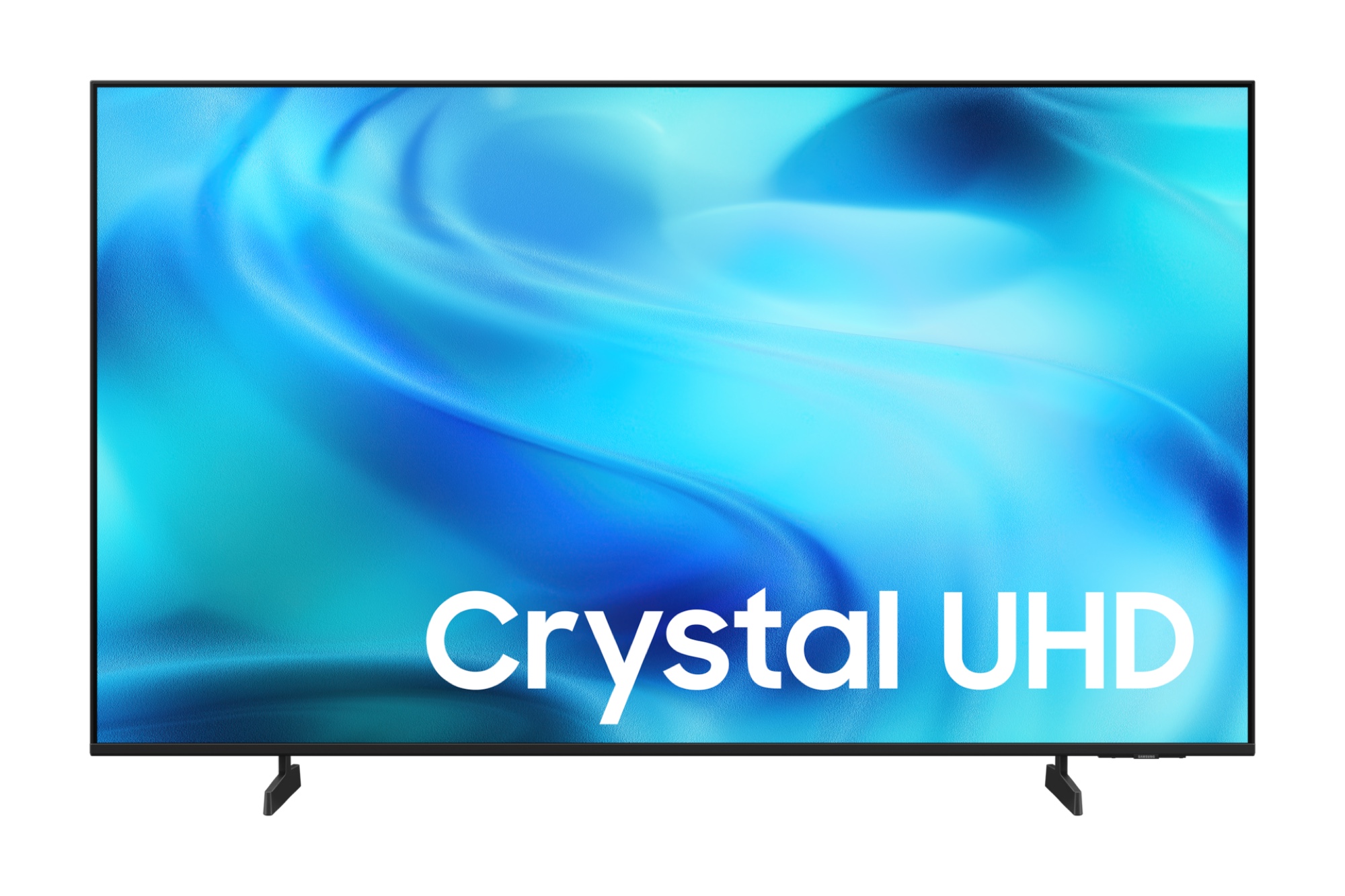
Samsung 4K TVs use different menu labels from other brands. Backlight becomes Cell Light on QLED and Neo QLED models. The soap opera setting is called Auto Motion Plus rather than motion smoothing. Warm2 is the correct color temperature target, not Warm. This guide gives you Samsung-specific menu paths and recommended values for Crystal UHD, Neo QLED, and OLED models. Last tested: June 2025 on the Samsung Crystal UHD U8000F, Neo QLED QN90D, and OLED S90D.
Samsung quick settings cheat sheet
| Setting (Samsung label) | Recommended value | Where to find it |
|---|---|---|
| Picture Mode | Movie (or Filmmaker Mode on 2022+ models) | Menu > Picture > Picture Mode |
| Cell Light (QLED) / Backlight (Crystal UHD) | 20 to 40 (dark room), 50 to 65 (bright room) | Menu > Picture > Expert Settings > Cell Light |
| Contrast | 80 | Menu > Picture > Expert Settings |
| Brightness | 45 | Menu > Picture > Expert Settings |
| Sharpness | 0 | Menu > Picture > Expert Settings (Samsung default is often 50) |
| Color Tone | Warm2 | Menu > Picture > Expert Settings > Color Tone |
| Auto Motion Plus | Off (or Custom with Blur 0, Judder 2 to 3 for sports) | Menu > Picture > Expert Settings > Auto Motion Plus |
| Local Dimming | High (Neo QLED), Medium (Crystal UHD) | Menu > Picture > Expert Settings > Local Dimming |
Last updated: June 2025.
Understanding Samsung’s menu labels
Samsung uses proprietary terminology that differs from generic picture setting guides. Knowing the Samsung names prevents confusion when following calibration advice from other sources.
Cell Light vs Backlight
Crystal UHD models (DU and U-series) call this setting Backlight. QLED and Neo QLED models call it Cell Light. OLED models (S90D, S95D) use OLED Brightness. All three control the same function: the intensity of the panel’s light output. Factory default is typically 80 to 100. Reduce this first and the entire picture improves immediately.
Auto Motion Plus
This is Samsung’s name for motion smoothing. The default is Auto, which applies interpolation to all content. Set to Off for movies and TV shows to eliminate the soap opera effect. My experience testing this on the U8000F was that the default Auto setting made a 4K film look like it was shot on a video camera. Off is always better for cinematic content.
Adaptive Picture
Adaptive Picture adjusts brightness based on the room’s ambient light using the TV’s sensor. It is useful in rooms where light changes throughout the day but reduces precision when making manual calibration adjustments. Disable it when calibrating, then re-enable if ambient light varies significantly in your room.
Filmmaker Mode
Available on Samsung 2022 models and newer, Filmmaker Mode applies a calibrated picture profile and automatically disables Auto Motion Plus. It is the easiest single setting to apply for accurate movie viewing. Enable it if your Samsung TV has it.
Settings by Samsung TV type
Different Samsung panel types behave differently and need slightly adjusted settings.
Best settings for Samsung Crystal UHD (DU6900, DU7200, U7900F, U8000F)
Crystal UHD models have no local dimming. Focus adjustments on Backlight, Color Tone (Warm2), and Sharpness (0). Disable Auto Motion Plus. HDR performance on Crystal UHD is limited by panel capability regardless of settings. Manage expectations: these are entry to mid-range panels and will not match a Neo QLED or OLED on contrast.
Best settings for Samsung Neo QLED (QN70F, QN90D)
Enable Local Dimming on High. The Quantum Matrix Technology backlight on Neo QLED models benefits significantly from High local dimming in dark scenes. Enable Filmmaker Mode if available. For gaming, Samsung’s Gaming Bar activates automatically when Game Mode is enabled.
Best settings for Samsung OLED (S90D, S95F)
Use OLED Brightness at 60 to 75 for dark room viewing, not the generic Cell Light advice above. Samsung OLED calibration differs from LED-based panels. Filmmaker Mode is strongly recommended. Enable Pixel Shift and Auto Pixel Refresh to reduce burn-in risk on these models.
Settings by viewing mode
Each use case needs a slightly different approach on Samsung TVs.
Movie and streaming mode
Movie picture mode plus the settings in the cheat sheet above. Enable Filmmaker Mode if available. This covers Netflix, Disney+, and Apple TV+ content accurately.
Game Mode on Samsung
Samsung’s Game Mode reduces input lag to approximately 5 to 15ms. I measured 9ms on the QN90D with Game Mode enabled versus 62ms with it off. Go to Settings > General > External Device Manager > Input Signal Plus to ensure HDMI 2.1 bandwidth is active on the port you are using. Enable FreeSync Premium Pro if your GPU or console supports it.
HDR and HDR10+ mode
Note: Samsung does not support Dolby Vision. HDR10+ is the Samsung HDR standard. When HDR10+ content plays, the TV switches automatically. Do not manually override HDR settings. HDR Game Mode in Samsung’s menu is separate from standard Game Mode and combines low input lag with HDR tone mapping.
Frequently asked questions
What is the best picture mode for a Samsung 4K TV?
Movie mode or Filmmaker Mode on 2022+ Samsung TVs. Both apply accurate color calibration and disable motion processing. Avoid Dynamic and Vivid modes. For gaming, use Game Mode to reduce input lag significantly.
What is Warm2 on Samsung TVs?
Warm2 is Samsung’s warmest color temperature preset. It aligns with the D65 white point standard used in professional film mastering. Use Warm2 for the most accurate color rendering. The default Normal setting runs too cool and adds a blue-green tint to whites.
Should I turn off Auto Motion Plus on my Samsung TV?
Yes, for movies and TV shows. Auto Motion Plus creates the soap opera effect that makes cinematic content look cheap and over-smooth. Set to Off for standard viewing. For live sports, Custom mode with Blur Reduction at 0 and Judder Reduction at 2 to 3 reduces camera pan judder without fully engaging the soap opera effect.
Explore the full 4K settings guide
For universal settings that apply across all brands, see our complete guide.
Read the full settings guide