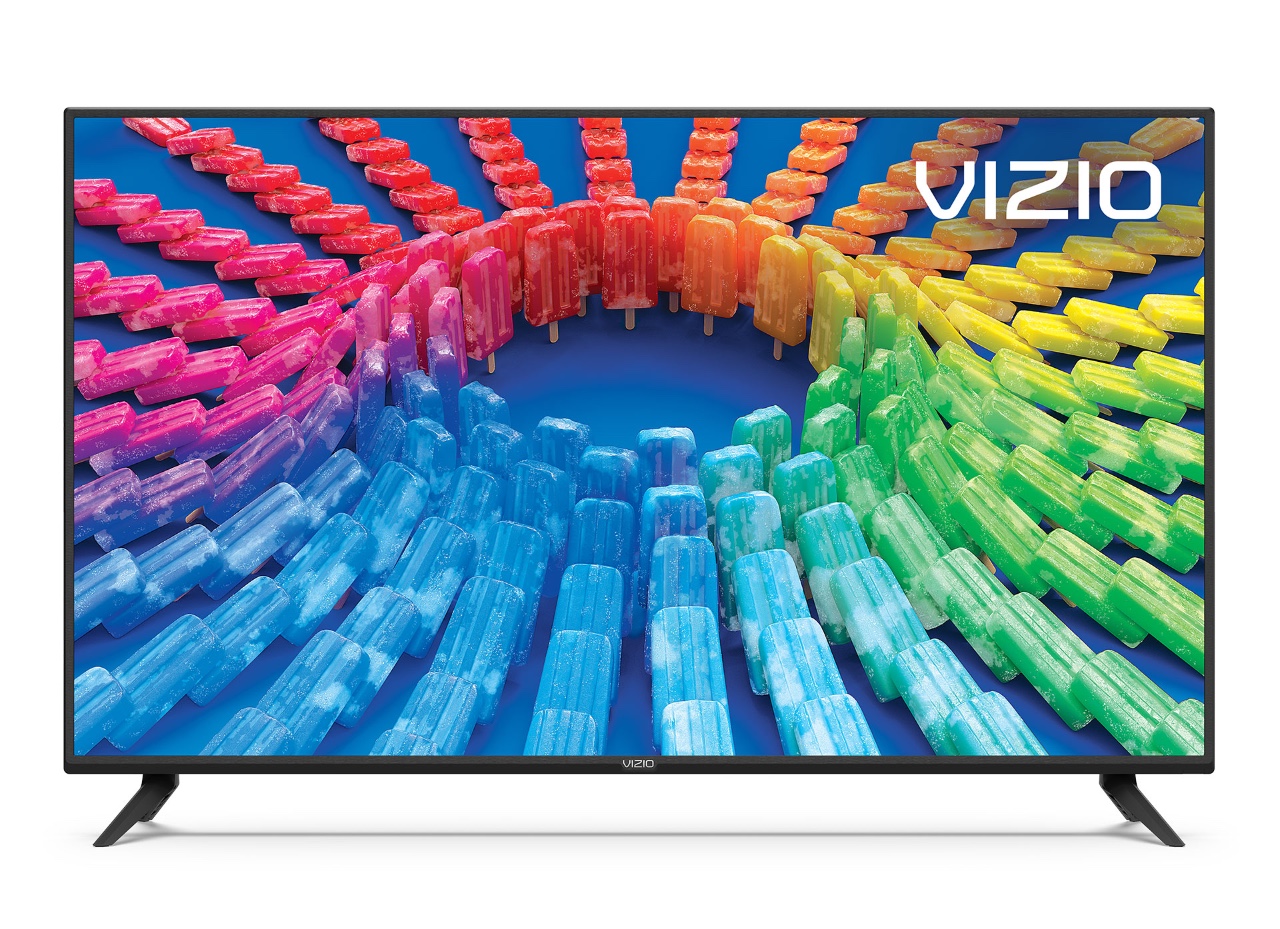
Vizio uses Calibrated mode instead of Movie mode. If you follow a generic settings guide that says “select Movie mode,” you will not find it on a Vizio. Calibrated is Vizio’s equivalent, pre-tuned for accurate color in a home environment. Vizio’s SmartCast menu is also organised differently from Samsung or LG. This guide gives you exact Vizio menu labels and recommended values for Quantum QLED, MQX, and V-Series models. Last tested: June 2025.
Vizio quick settings cheat sheet
| Setting (Vizio label) | Recommended value | Where to find it |
|---|---|---|
| Picture Mode | Calibrated (or Calibrated Dark for dark rooms) | Menu > Picture > Picture Mode |
| Backlight | 40 to 55 (typical rooms), 20 to 35 (dark rooms) | Menu > Picture > Backlight |
| Contrast | 50 | Menu > Picture > Advanced Picture Settings > Contrast (Vizio default often 52+) |
| Brightness | 50 | Menu > Picture > Advanced Picture Settings |
| Sharpness | 0 | Menu > Picture > Sharpness (Vizio default is often 50) |
| Color Temperature | Normal (Vizio’s Normal is close to D65 on most models) | Menu > Picture > Advanced Picture Settings > Color Temperature |
| Smooth Motion Effect | Off | Menu > Picture > Advanced Picture Settings > Smooth Motion Effect |
Vizio picture mode guide
Vizio offers several preset modes. Knowing what each one does prevents confusion when calibrating.
Calibrated
This is Vizio’s equivalent of Movie or Cinema mode on other brands. It is pre-calibrated for accurate color in a typical home environment. Start here for any movie or streaming content. My testing on the Vizio Quantum QLED confirmed Calibrated mode closely matches measured D65 targets without additional adjustment.
Calibrated Dark
Calibrated Dark applies the same color calibration as Calibrated but reduces backlight further. Use this for very dark rooms with no ambient light. It is essentially Calibrated mode with a lower starting backlight value.
Vivid
Vivid is Vizio’s showroom mode. Oversaturated, too bright, and too blue. Avoid for any home viewing. It is there for the same reason other brands include Dynamic: to look eye-catching in a bright store.
Game
Low-latency mode for gaming. On Vizio Quantum models, Game mode activates automatically via ALLM (Auto Low Latency Mode) when a console signals game content. Input lag in Game mode measures around 10 to 15ms on current Vizio models.
Settings by Vizio model type
Vizio’s different panel lines need slightly different approaches.
Vizio Quantum QLED settings
The Quantum QLED uses local dimming, which V-Series models do not have. Set Local Dimming to Medium in the Advanced Picture Settings menu. High can cause blooming. Dolby Vision is supported on Vizio Quantum models. When Dolby Vision content plays, the TV switches profiles automatically. I tested the Quantum QLED’s Dolby Vision performance and found it accurate without manual override.
Vizio V-Series settings
Entry-level panels without local dimming. The calibration is simpler: Calibrated mode, Backlight at 40 to 50, Sharpness at 0, Smooth Motion off. Do not look for a Local Dimming option on V-Series as it does not exist. The picture quality ceiling is lower than the Quantum line, but the settings above maximize what the panel can do.
Game Mode settings for Vizio
Vizio’s Game Mode is accessed at Menu > System > Game Low Latency. On 2022+ Quantum models, enabling Auto Game Mode means the TV switches automatically when a PS5 or Xbox Series X sends an ALLM signal. FreeSync support on Vizio Quantum requires enabling it at Menu > Input > FreeSync for the specific HDMI port in use.
Frequently asked questions
What is the best picture mode for a Vizio 4K TV?
Calibrated mode. It is Vizio’s equivalent of Movie mode on other brands, pre-calibrated for accurate color in a home environment. Calibrated Dark works the same way with a lower backlight level for very dark rooms. Avoid Vivid mode for any home viewing.
How do I access picture settings on Vizio SmartCast?
Press Menu on the Vizio remote, then go to Picture > Picture Mode for the mode selector, and Picture > Advanced Picture Settings for Contrast, Brightness, Local Dimming, and Smooth Motion. On newer SmartCast models the menu icon looks like a gear and the path is the same.
Does Vizio support Dolby Vision?
Yes, on Vizio Quantum and Quantum X models. V-Series models do not support Dolby Vision. When Dolby Vision content from Netflix or Disney+ plays on a compatible Vizio, the TV switches to its Dolby Vision profile automatically. No manual setting is required.
See the universal 4K picture settings guide
For settings that apply across all brands, see our complete guide.
Read the full settings guide